Choose a place
Open Destinations, choose San Francisco, Venice or Kyoto, and select an available stage. The first stage in each place is open independently.
Here for your little adventure
New to HummiHops or looking for a favorite route? Start here for the essentials, a few visual guides and answers to common questions.
Start with three small steps
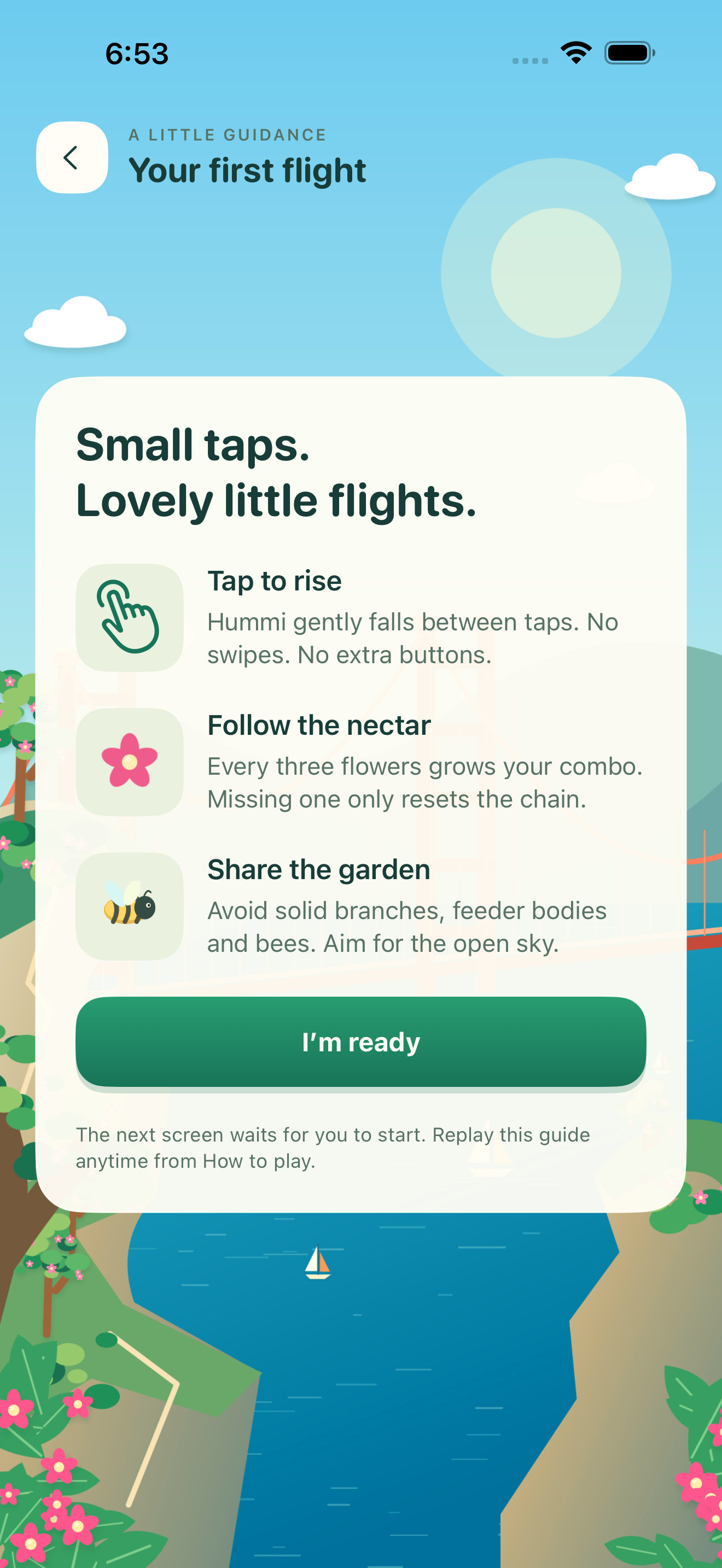
The first flight guide also lives inside the app. You can replay it from How to play whenever you like.
Open Destinations, choose San Francisco, Venice or Kyoto, and select an available stage. The first stage in each place is open independently.
On the Ready screen, start the flight. Tap the open flight area to lift Hummi; let Hummi float between taps. No swiping is needed.
Collect glowing flowers, watch for solid branches and feeders, and give bees some space. You can pause and resume whenever you need a break.
Inside the app · first flight
The native introduction explains the tap, nectar and obstacle basics before you begin. The next screen waits for you to start—nothing begins unexpectedly.
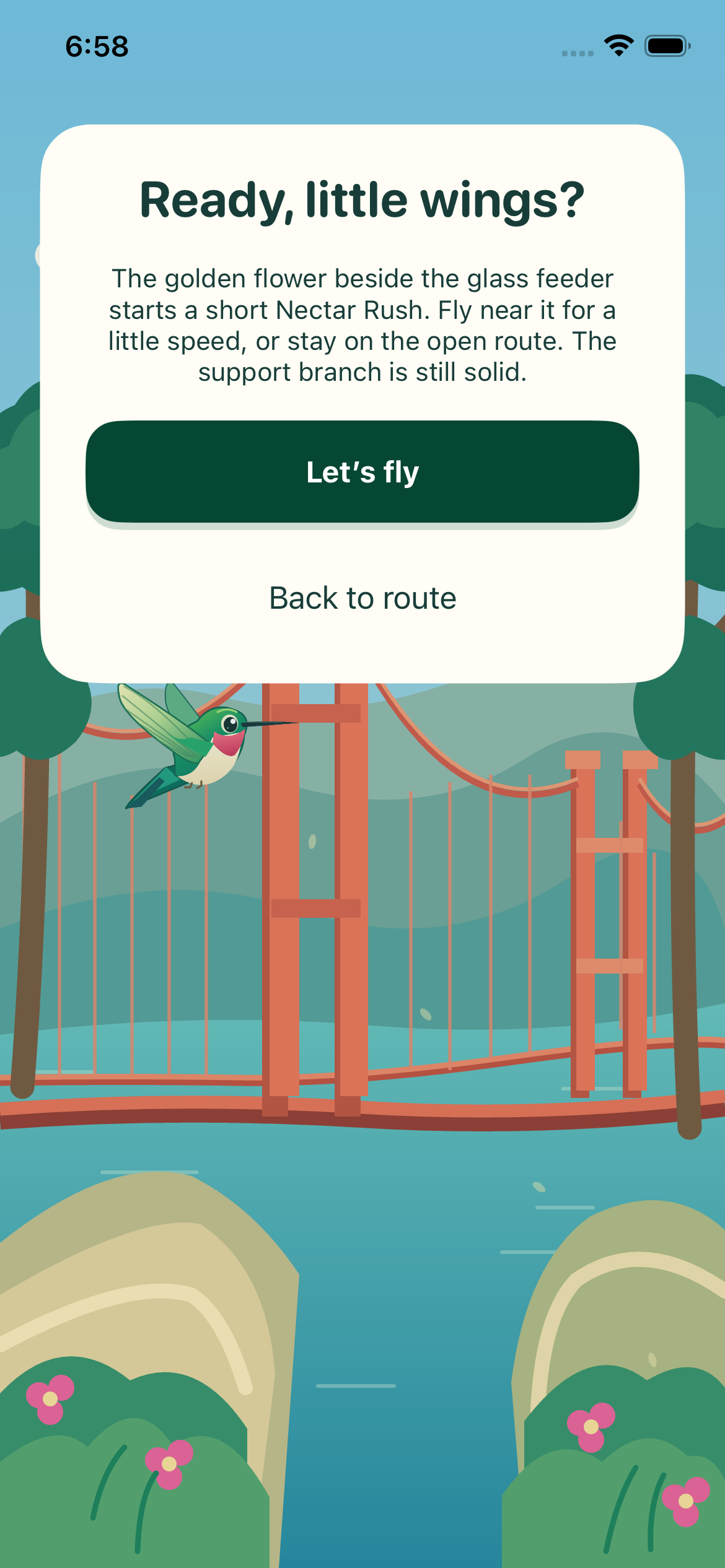
Inside the app · stage briefing
Read the stage card before takeoff. In Bridge View, a golden flower beside a safe feeder offers an optional, short Nectar Rush. You can stay on the open route instead.
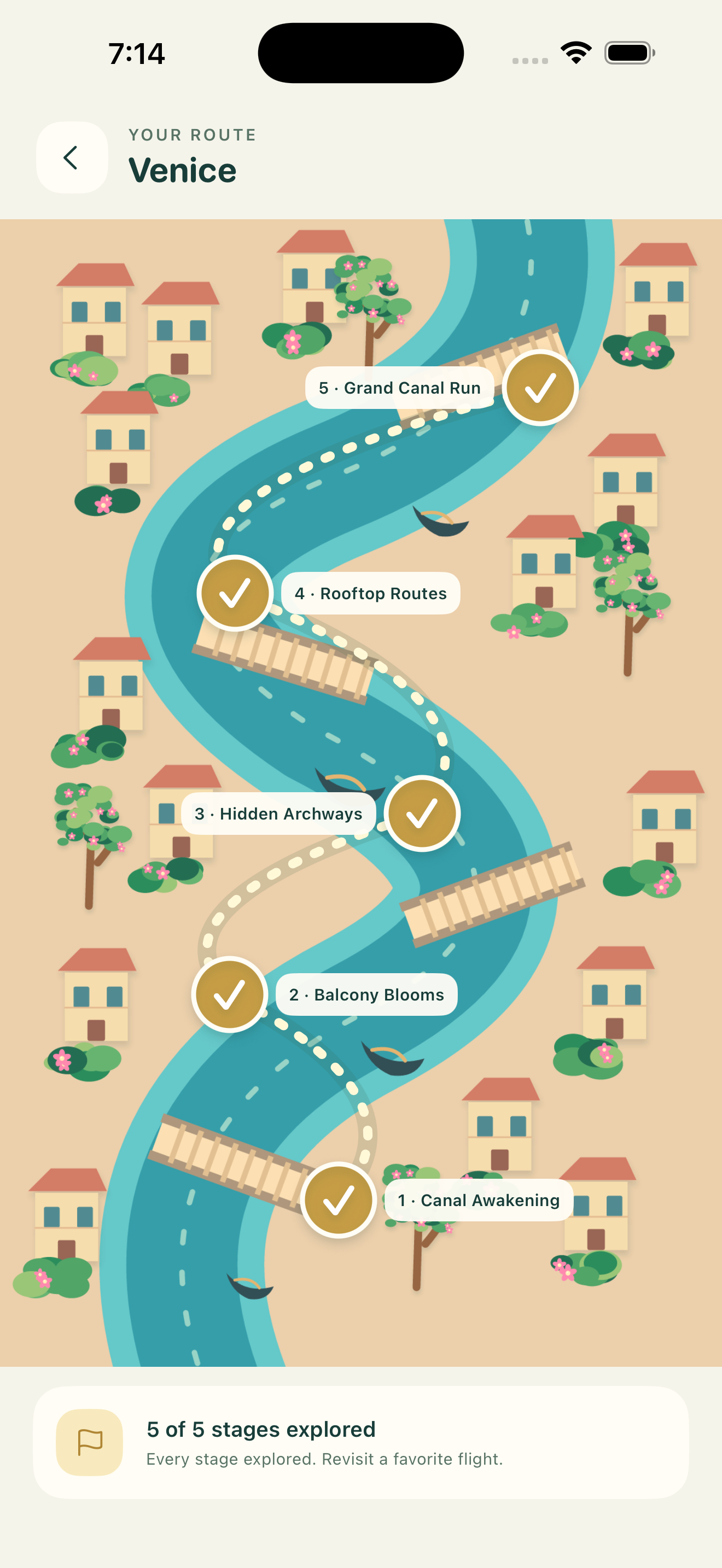
Inside the app · your route
Finishing a normal stage opens the next stop in that destination. The illustrated map marks completed stages and lets you return to favorite flights. Practice records stay separate and do not open the next stage.
Good to know
No. Practice can be enabled in Settings. It keeps separate records and does not unlock later stages.
An interrupted flight pauses. When you return, choose Resume flight, Restart flight or Back to route.
Yes. Settings keeps separate controls for Music, Sound Effects, Gentle haptics and reduced decorative motion.
On this iPhone, with no app account. Device backups may include local app files. See the privacy policy for details.
No. Visiting birds can point toward optional nectar. Ignoring them has no penalty; a completed route may earn a one-time bonus.
Note the destination and stage, what happened, your iPhone model and iOS version, and the steps to reproduce it. Help in the app can copy limited diagnostic details for you to review before sharing.
Still need a hand?
For stage trouble, save recovery or feedback, include the details above. Please do not send a save or recovery copy unless we have agreed on a safe process first.
Email [email protected]. We use your message only to answer and resolve your request, then delete it from our active mailbox within 90 days after resolution. The app does not send email automatically.
For information about locally stored progress, website visits and support email, read the privacy policy.